
How Dropbox: Cloud Storage & Backup works
Dropbox, Inc. · Productivity
Android
What it does
Dropbox is cloud file storage and sync, with photo backup, sharing and a Plus subscription for more space and features.
Who it is for: People who want cloud file storage, sync, photo backup and sharing for their files.
Key features
Sign-up and onboarding
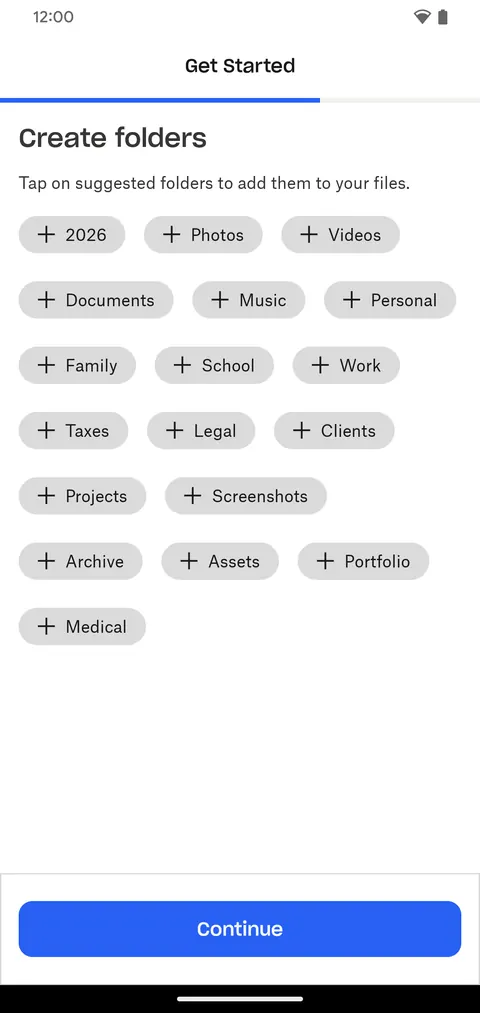
Google sign-up confirmation, use survey, camera-upload setup, folder suggestions and add-content steps.
Home, Files and Photos
Home with starred items and quick actions, Files list, Photos camera-upload view.
Create and upload
Create sheet with upload, folder and document actions.
Permissions
Notification permission prompt.
Plus trial offer
Plus free-trial offer after onboarding; shown and backed out.
The main user flow
- Create an account with Google (test account), answer the use survey
- Set up camera uploads and suggested folders
- Browse Home, Files and Photos
- Open the create sheet to upload, make a folder or scan
- Navigation
- Bottom bar: Home, Files, Photos, Account, plus a create button.
- Onboarding
- Account confirmation, a use-case survey, a Plus trial offer, camera-upload setup, suggested folders and two add-content cards before the Home screen.
- How it makes money
- Freemium: Plus with a 30-day free trial and paid plans. Nothing was purchased.
Screenshots
10 of 11 screens, captured on a real phone with sample data.
Home Files Try Plus free for 30 days Onboarding survey: how you will use Dropbox Create sheet Create account (Google) Notification permission Photos Set up camera uploads Create folders - +1 more screenFree with an account
Screenshots: © Dropbox, Inc., shown for commentary.
See all 11 screens — create a free accountSee every screen
The full map has all 11 screens, every feature and where each one lives. It is free with an account.
What could be better
Our read of the map, the store listing and recent reviews.
Fix sign-in and show a clear recovery path for Google and 2FA failuresmedium
Users report login freezes, Google sign-in failing and 2FA codes not arriving, with no clear fallback. Ship a reliable sign-in and show a retry or alternate-method path when it fails.
Keep existing files viewable and downloadable when over the storage limitmedium
Users say files are locked behind upgrade prompts once over quota, and that the upgrade screen blocks deleting files. Let over-quota users read, download and delete, and show a non-blocking notice instead.
Cut onboarding to one sign-in step, then open Home or Filessmall fix
Survey, trial offer, camera-upload setup, folder picks and add-content cards all sit before the first file view. Keep one optional setup step and defer the trial and photo permission until needed.
Show upload progress and resume failed uploads without restartinglarge
Uploads show no progress, restart on any connection drop, and fail with generic errors or freeze on upload taps. Add per-file progress, resumable transfers and a specific error message for each failure.
Make offline files and video playback work without a connectionlarge
Users say offline access does not work and video will not play offline. Cache chosen files and common video formats on the device and label what is available offline.
Show storage and price per plan before checkout, in plain termssmall fix
Plans span a wide price range and users object to the price of larger tiers. Show storage, price and billing period per tier, and the total before any trial or purchase.
State in-app how user files are used for model training before any usemedium
Users found out files were used for machine learning from FAQs, and say it was not clear in the privacy policy. Show an in-app opt-in or opt-out for any use of content before it happens.
Want an app like this, but better?
Tell us the idea. We research it, and build it for you.
Submit your idea