
How TeamViewer Remote Control works
TeamViewer Germany GmbH · Business
Android
What it does
TeamViewer Remote Control is a mobile client for remotely accessing and controlling desktops, servers and devices, and for giving remote support. Users can connect to other computers, manage devices and chat once signed in.
Who it is for: People who want to remotely access and control computers, servers and devices, or give remote support to others.
Key features
Legal and privacy documents
In-app access to EULA, privacy notices, cookie notice and DPA annexes.
Embedded website browsing
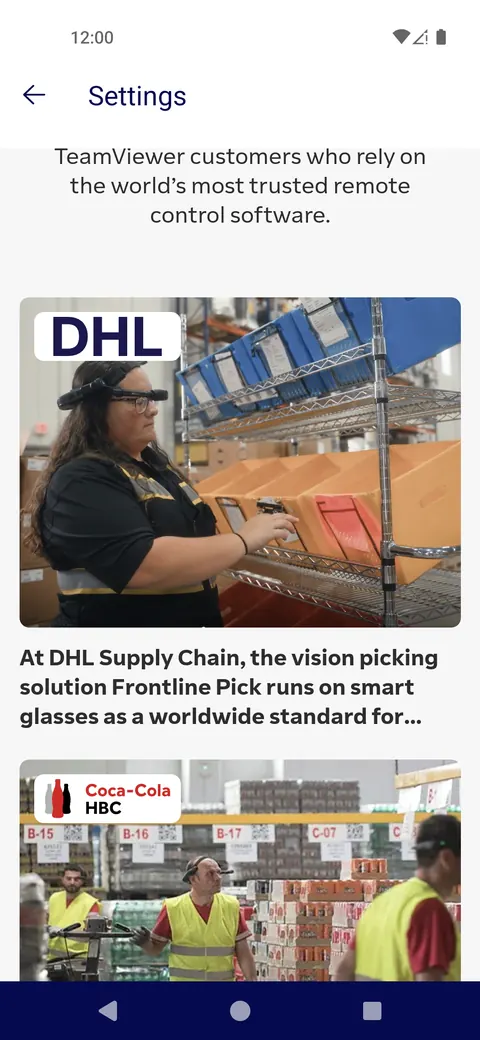
Browse TeamViewer marketing, pricing and customer stories inside the app.
Logging and log export
Enable advanced logging, view and share the log file.
Remote control settings
Control mode (mouse or touchscreen), cursor, quality, audio and UDP options.
Security settings
Biometric unlock, saved passwords and remote device lock behaviour.
Account sign-in
Sign in or create a TeamViewer account to unlock devices and chat.
The main user flow
- Connect to a remote device from the home screen
- Sign in to access the Devices list and Chat
- Configure remote control mode, quality and security settings
- Set up two-factor approval by scanning a QR code from the desktop app
- Browse companion apps and legal documents
- Navigation
- Side drawer with Connect, Devices, Chat and Apps sections, plus a Settings screen reached from the top bar.
- Onboarding
- A notification permission prompt on first launch; sign-in or account creation is required before devices and chat are usable.
- How it makes money
- Visible: a Subscribe button on the Devices, Chat and Apps screens, an Upgrade entry in settings, and an embedded website with Black Friday 30% off licence offers and Free Download links. No explicit prices seen in the captured screens.
Screenshots
10 of 36 screens, captured on a real phone with sample data.
Home - connect to provide support Apps catalogue 2FA setup (TeamViewer Remote) Settings main Interaction method sheet Biometric unlock info Devices (signed out) Notification permission prompt Allow camera access dialog Customer stories (scrolled) - +26 more screensFree with an account
Screenshots: © TeamViewer Germany GmbH, shown for commentary.
See all 36 screens — create a free accountSee every screen
The full map has all 36 screens, every feature and where each one lives. It is free with an account.
What could be better
Our read of the map, the store listing and recent reviews.
Keep saved connection passwords working across app updatesmedium
After updates, saved passwords stop unlocking saved devices and users are asked for passwords again. Ship updates that migrate stored credentials and test saved-connection reconnects before release.
Show free-tier session limits before connecting, not mid-sessionmedium
Sessions are cut to a short limit or flagged as commercial use while they are running. Show the limit and its reason before a connection starts, and warn users before any cut-off.
Offer in-app cancellation with renewal dates shown before purchasemedium
Users report auto-subscription and cancellation disputes over renewal windows. Show renewal date and cancel steps before the purchase, and allow cancelling in the app with a written confirmation.
Keep sign-in sessions alive so users are not logged out repeatedlylarge
Users are logged out, asked to sign in again, or see 'Stay signed in' fail. Keep refresh tokens valid across network changes and show a clear re-auth prompt only when a token truly expires.
Keep remote sessions running when the app is backgroundedlarge
Sessions drop when the app is minimised or when the network changes, and users must reopen the app on the remote machine. Keep the connection alive in a foreground service and reconnect automatically.
Fix touch and mouse input pass-through and cursor alignmentmedium
Users report broken input pass-through and cursor misalignment after updates, which makes control unusable. Add per-mode input tests and a visible cursor calibration step in the Interaction method sheet.
Add a guided first connection that explains each stepmedium
New users spend long periods trying to add a partner or connect and get errors. Provide a step-by-step first connection with a device ID example and a clear error message for each failed step.
Merge the two 2FA setup screens and add in-app QR scanningsmall fix
Two near-duplicate 2FA screens exist and users say the app cannot scan the QR code for approval. Use one setup screen with an in-app QR scanner and approval prompts that work from the notification.
Want an app like this, but better?
Tell us the idea. We research it, and build it for you.
Submit your idea