
How Eye exam works
Andrei Brusentsov
Android
What it does
Eye Exam is a free home visual acuity test that uses letter or picture charts to measure eyesight, stores results and shows trends. It states it does not replace an optician or ophthalmologist.
Who it is for: People who want to check their eyesight at home using letter or picture eye charts and track their results over time.
Key features
Visual acuity eye exam
Home-based vision test with Letters or Pictures modes, step-by-step instructions and per-eye closing steps.
Account creation prompts
Banner prompts to create an account, shown in several languages.
Navigation drawer
Side menu with Overview, Eye exam, History, Reminder, Rate, Settings and Exit.
PRO version upgrade
In-app prompt to buy the PRO version through Google Play.
Test history
Records past results and shows them as a graph or table; empty until a first exam is taken.
Test reminders
Lets the user schedule reminders to repeat the eye test; off by default.
The main user flow
- Start eye exam, choose Letters or Pictures, follow instructions and per-eye steps
- Review results in History as graph or table
- Set reminders to repeat the test
- Open the navigation drawer to switch sections
- Navigation
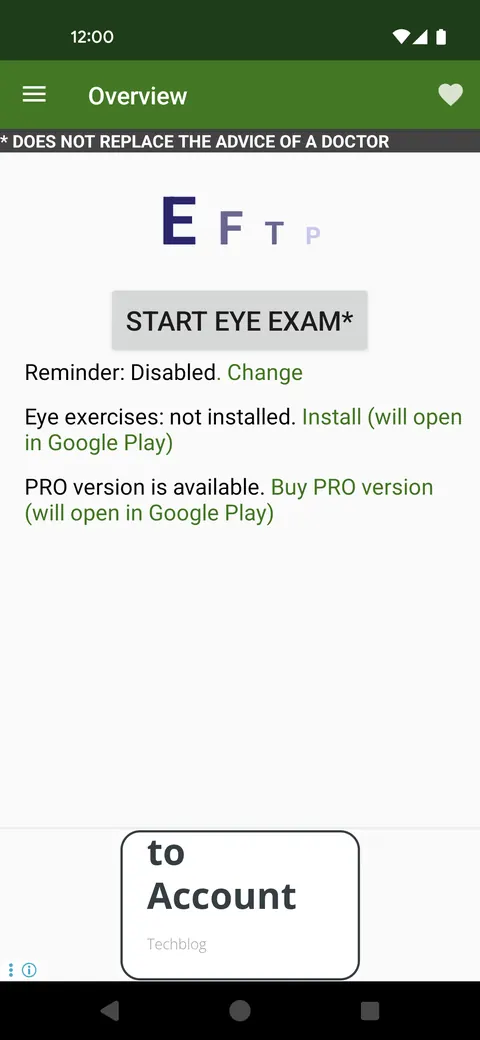
- Side navigation drawer with Overview, Eye exam, History, Reminder, Rate, Settings and Exit; START EYE EXAM button on Overview.
- Onboarding
- No dedicated onboarding captured; the user lands on Overview with a medical disclaimer and optional account creation prompts.
- How it makes money
- Banner ads from third parties on most screens, an info-panel ad, and a PRO version purchase prompt via Google Play; eye exercises are an optional install.
Screenshots
10 of 50 screens, captured on a real phone with sample data.
Overview - home Choose test type (account banner) Close your right eye Letters instructions (account banner) Navigation drawer Overview History - drawer (empty) Techblog ad destination Info - ad banner (ADHD Test) Overview - detail view - +40 more screensFree with an account
Screenshots: © Andrei Brusentsov, shown for commentary.
See all 50 screens — create a free accountSee every screen
The full map has all 50 screens, every feature and where each one lives. It is free with an account.
What could be better
Our read of the map, the store listing and recent reviews.
Report acuity in standard units with a plain-language explanation of each resultmedium
Results show bare percentages with no meaning, so users cannot tell if they are good or bad. Show results as acuity values such as 20/20 or 20/40 for each eye, with a short explanation and a clear disclaimer.
Scale letter and symbol sizes from the device and distance so the first row is readablemedium
Early characters are too small for many users, so they fail before the real test starts. Calibrate the starting size to the screen and an arm's-length distance, and step down from a readable size.
Save test progress on abort and allow resuming an unfinished exammedium
Aborting a test shows a warning that progress will be lost and offers no resume, so users restart from zero. Keep partial results and offer a resume option on the Overview screen.
Shorten the per-eye test flow and remove repeated continue tapsmedium
Users report the test takes too long and feels like wasted time compared with a clinic visit. Combine per-eye steps and auto-advance after each eye instead of requiring a CONTINUE tap on every step.
Validate test accuracy against clinical charts and publish the methodlarge
Reviewers say results differ from an eye doctor's visit and the test is limited to two sizes. Publish the test method, run comparison studies with clinical charts, and state accuracy limits on the results screen.
Replace duplicate overview screens with one home and direct drawer routessmall fix
The drawer reopens near-identical Overview screens with the same start and PRO content, which makes navigation repetitive. Keep one home screen and have each drawer item open its own section directly.
Move account prompts out of the test flow and remove third-party banners from test screenssmall fix
Create Your Account banners and third-party ads appear on test screens, which interrupts the exam. Keep ads off screens during tests and show account offers only on Settings or after the result.
Want an app like this, but better?
Tell us the idea. We research it, and build it for you.
Submit your idea