How Sennheiser Hearing Test works
Sonova Consumer Hearing GmbH
Android
What it does
Sennheiser Hearing Test is a self-administered hearing assessment that runs on any pair of headphones. The user answers a few questions about their age and hearing, then completes a short listening test lasting under five minutes. Results can be saved and compared when signed in to a Sennheiser account.
Who it is for: People who want to self-check their hearing using any pair of headphones, through a few questions and a short listening test.
Key features
Legal documents
Access to privacy policy, license agreement and supplementary licenses.
Hearing test
Self-administered hearing assessment that takes under five minutes using any headphones.
Language selection
Choose from nine interface languages.
Self-assessment questionnaire
Questions about perceived hearing, phone conversation difficulty and high-pitch sound difficulty.
In-app feedback
Satisfaction survey with an option to share detailed feedback.
Sennheiser account login
Optional sign-in to a Sennheiser account for extra features.
The main user flow
- Accept terms and consent, optionally sign in or skip, then start the hearing test
- Set up: age range, self-assessment questions, quiet-environment check, connect headphones
- Complete the test and view results (results-screen flow not captured in these screens)
- Give feedback or read help/FAQ from the profile menu
- Navigation
- Bottom or profile-menu style navigation from a home screen with a single hearing test button; profile menu holds settings, help, feedback, permissions, privacy and licenses.
- Onboarding
- Multi-step onboarding: terms consent with optional data sharing, account question (login or skip), then test preparation tips and a guided questionnaire before the test starts.
- How it makes money
- none seen
Screenshots
10 of 40 screens, captured on a real phone with sample data.
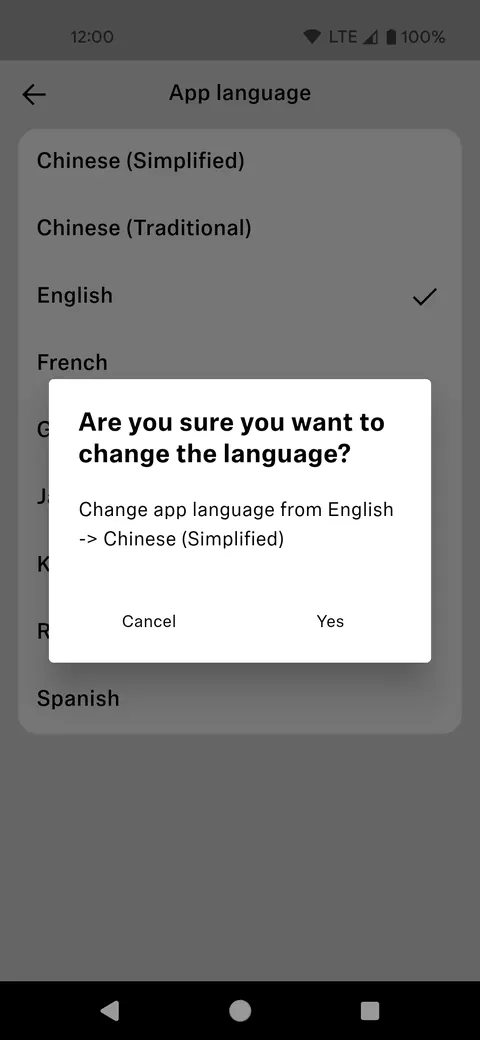
Home - start hearing test Help / FAQ list Connect headphones App settings Welcome - terms and usage data consent Profile menu Privacy policy (external link) Login to your account prompt Quiet environment check prompt Confirm language change - +30 more screensFree with an account
Screenshots: © Sonova Consumer Hearing GmbH, shown for commentary.
See all 40 screens — create a free accountSee every screen
The full map has all 40 screens, every feature and where each one lives. It is free with an account.
What could be better
Our read of the map, the store listing and recent reviews.
Show which answers drive the score and let users retake the testmedium
Reviews say results shift with questionnaire answers, not the tone tests. Show the factors behind each score, separate the self-rated answers from the measured results, and explain the scoring rules.
State headphone requirement and connect step before the questionnairesmall fix
Users find out late that headphones are required and quit. Put the headphone requirement on the home or preparation screen and check the connection before the age and questionnaire steps.
Publish a device support list and fix pairing for common earbudsmedium
Users with newer earbuds or specific models report the test does not detect or play to their device. Publish supported models, detect the output route, and show a clear fallback when a device is unsupported.
Ramp tone volume smoothly and fix the level controlmedium
Reviewers hear sudden tone onsets and coarse volume steps, and some report silence across part of the dial. Use gradual ramps and fine-grained level steps, and test the dial on wired and Bluetooth output.
Keep terms acceptance separate from usage-data sharingsmall fix
A reviewer says data sharing is required to run the app. Show the license and privacy consent as the only gate, keep usage-data sharing as an unchecked toggle, and let users change it later in permissions.
Move the account prompt after the first test and cut setup stepssmall fix
Account login is pushed before the test, and the setup runs through checklist, privacy, tips and duration screens before any measurement. Offer sign-in after results and combine the prep screens into one.
Save test state so connection errors do not block resultsmedium
Users report results cannot be shown and the test cannot finish because the app claims there is no internet, even when other apps work. Keep the test local, save results on the device first, and sync when a connection returns.
Want an app like this, but better?
Tell us the idea. We research it, and build it for you.
Submit your idea